
Fast GPU-accelerated Rendering
Reduces display lag for a comfortable browsing experience.
Compatible with Windows 10/11
PicSum is an image viewer that combines ultra-fast GPU-accelerated rendering, a meticulously tuned startup time of under 0.2 seconds, and intuitive tab operations comparable to Google Chrome. Eliminate the stress of image browsing with overwhelming speed and familiar operations.
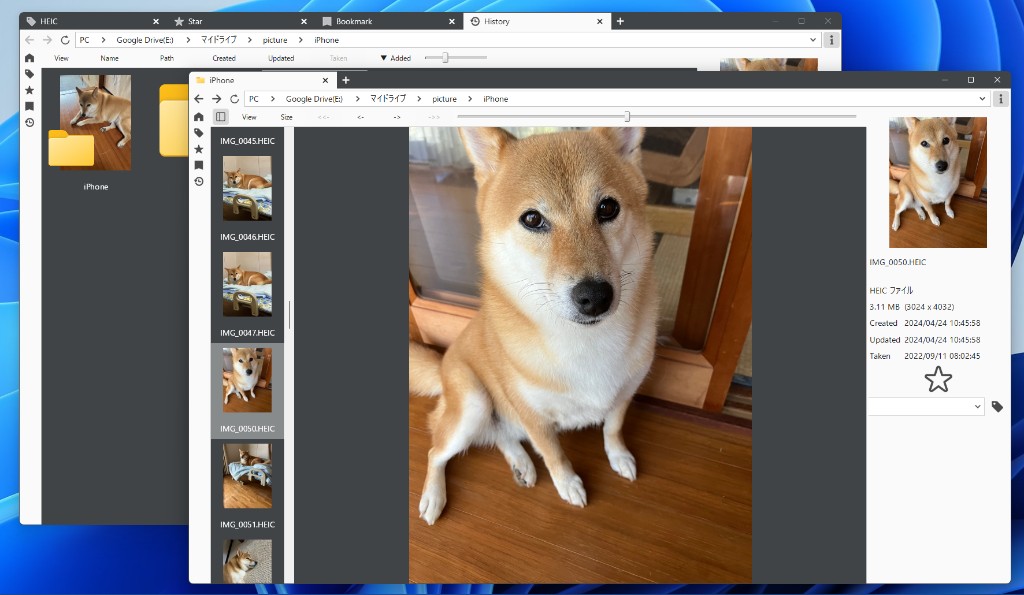

Reduces display lag for a comfortable browsing experience.
Meticulously tuned for smooth transitions from startup to switching images.
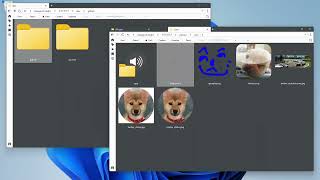
Display two pages or images side-by-side, convenient for comparison or layout checks.
Switch between multiple folders or views with tabs without interrupting your workflow.
Navigate through hierarchies like File Explorer to quickly reach your destination.
Open folders quickly from favorite lists, browsing history, and more.
Classify files with tags to help with organization and future searches.
Convert image files to 'Avif', 'Gif', 'Jpg', 'Png', or 'Webp'.
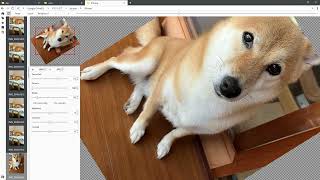
Support for zooming, rotation, flipping, and adjustment of brightness, saturation, and contrast.
Supports the following image formats:
Middle-click on tabMouse wheel on tabMiddle-click on file list itemMiddle-click on address bar itemMiddle-click on home buttonMiddle-click on star buttonMiddle-click on bookmark buttonMiddle-click on history buttonMiddle-click on tag in tag listSide buttonsControl + WControl + TControl + NShift + GGGControl + FControl + TabControl + Shift + TabAlt + Left ArrowAlt + Right ArrowControl + R / F5PicSum is available on the Microsoft Store.
Install from the Store.
Store display may vary in language and buttons depending on your environment.